 HueWalls
One prompt away from a wallpaper of your own
Pick a prompt, paste it into ChatGPT or Gemini, change a few words, and make a phone or desktop wallpaper nobody else has. Every prompt comes with a finished HD wallpaper you can download for free.
Free download · Full prompt included · Phone & desktop wallpapers

New arrivals · Desktop Wallpapers


Editor’s picks · Desktop Wallpapers


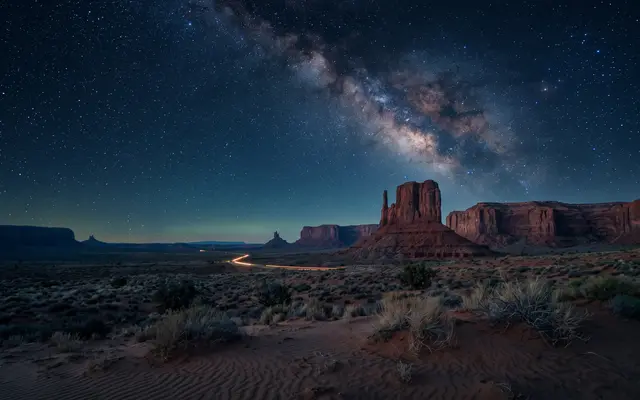
Popular prompts · Desktop Wallpapers
Copy a prompt and make your own

Pavilion in Blossom Valley
A wide Chinese fantasy landscape inspired by the reference image. A fictional adult fairy in a flowing pale turquoise and ivory silk dress stands on a pale ston
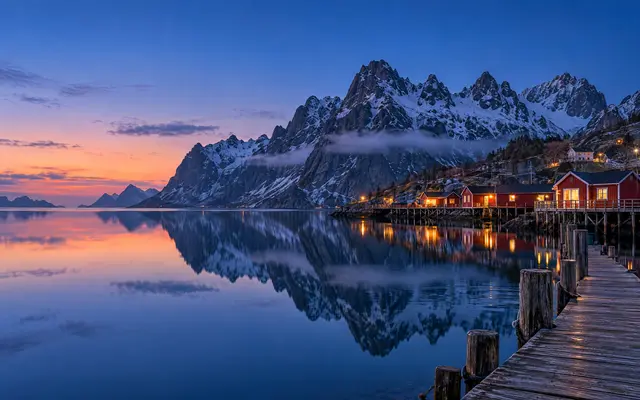
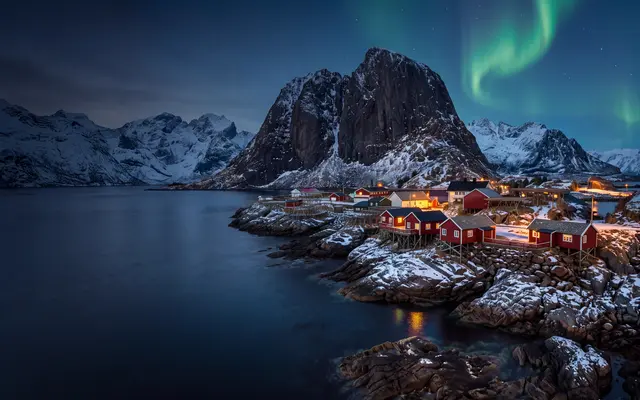
Lofoten Red Cabins at Blue Hour
Blue hour in Norway's Lofoten Islands: a calm bay mirrors the steep jagged peaks on the far shore, a few red wooden fishing cabins lined at the foot of the moun
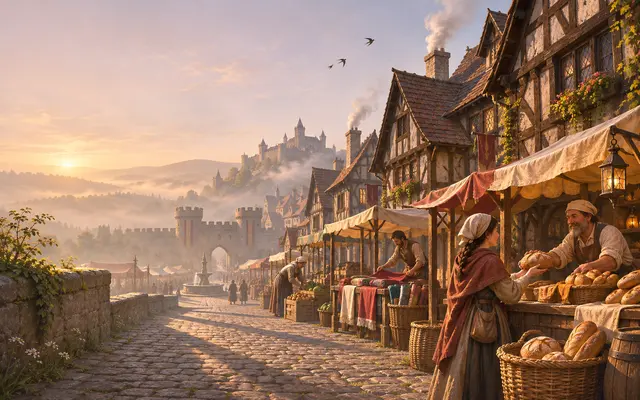
Market Morning in a Medieval Town
European medieval game environment concept art: a market square in a walled medieval town at early morning, viewed down a gently sloping cobblestone street with
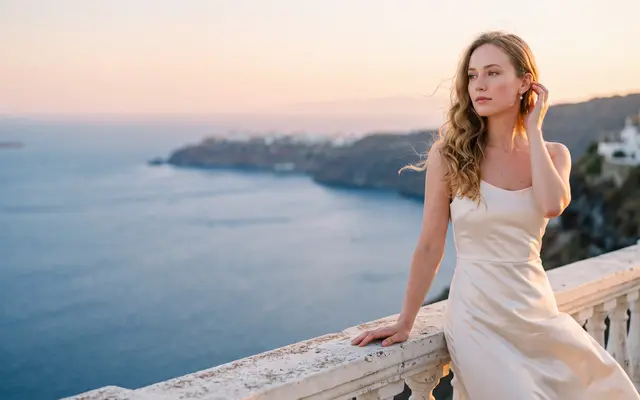
Golden Hour on a Mediterranean Terrace
Cinematic ultra-realistic fashion portrait photography of a young adult European woman in her mid twenties with a soft oval face, fair skin with a natural warm
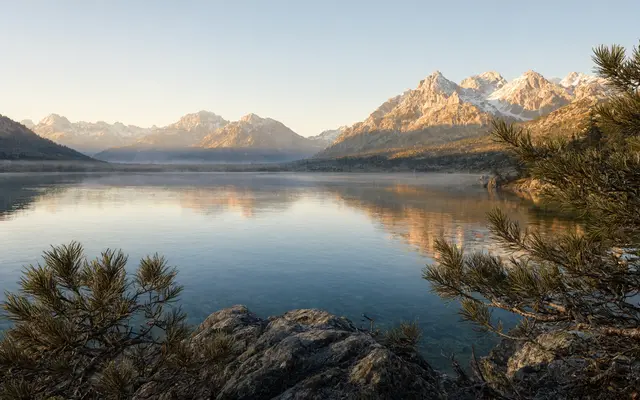
Alpine Lake at Golden Hour
An alpine lake at golden hour, landscape photography, horizontal frame, no people. Sunrise light turns the distant snow-capped peaks warm gold, and a light mist
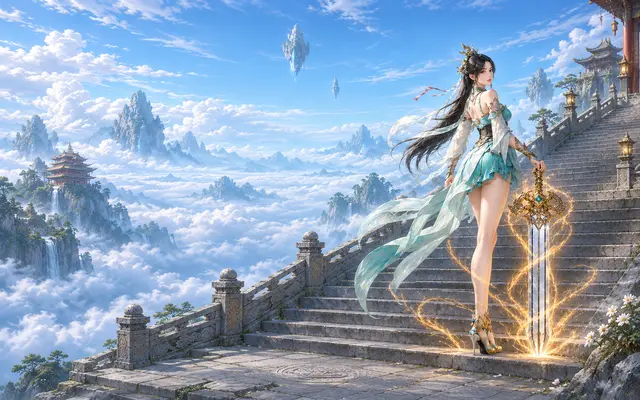
Sword Cultivator Above the Clouds
A fictional adult sword cultivator with long black hair, turquoise and ivory silk robes and a gold hair ornament looks back over her shoulder on ancient stone t
Browse by category · Desktop Wallpapers
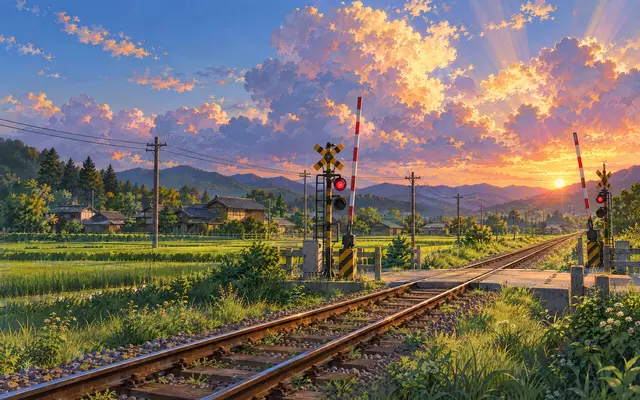
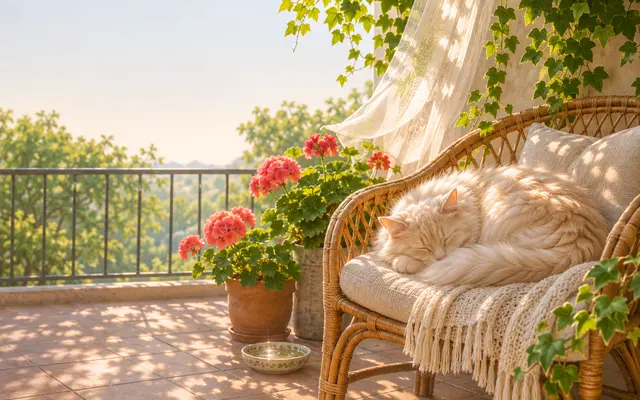
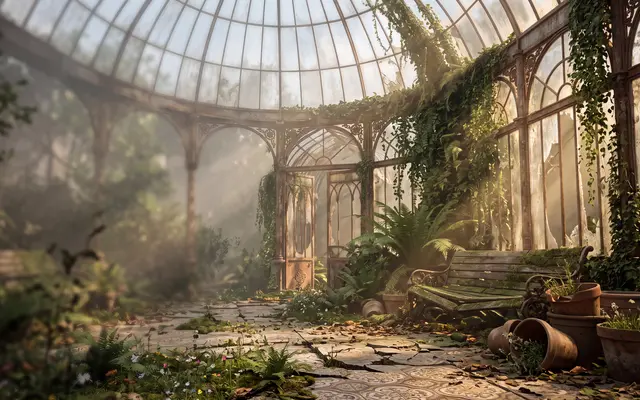
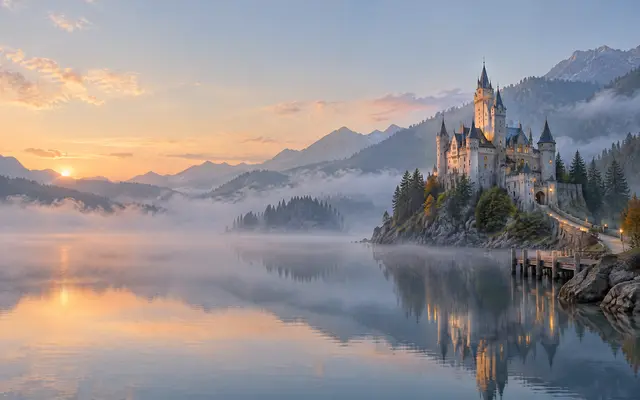
Most downloaded · Desktop Wallpapers
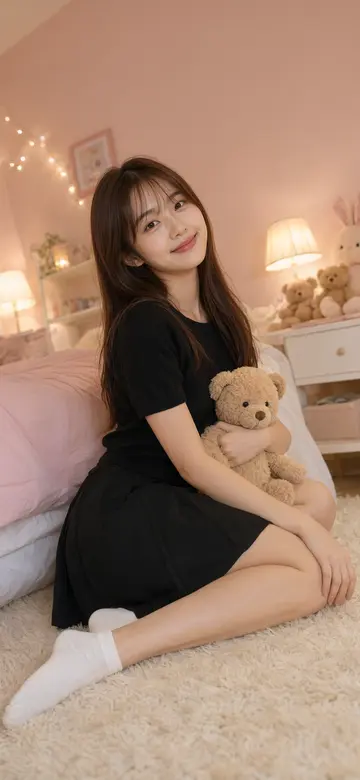
Phone Wallpapers


Questions about AI wallpapers and prompts
Are these wallpapers free?
Yes. Every wallpaper can be downloaded for free and used as a phone or desktop background, with no account needed. If you publish a wallpaper or use it commercially, you must credit HueWalls (huewalls.com).
What size are the wallpapers?
Phone wallpapers are 1080×2340, a tall format that displays well on most modern iPhone and Android screens (some models may crop the edges slightly). Desktop wallpapers are 2560×1600 (16:10), made for MacBooks and most laptops and monitors; 16:9 screens crop a thin strip from the top and bottom. Desktop wallpapers also work on iPad: landscape looks best, while in portrait a large part of the left and right sides is cropped. You can also download the lossless PNG original.
How do I use a wallpaper prompt with ChatGPT or Gemini?
Open a wallpaper, press Copy prompt, then paste it into ChatGPT, Gemini or another AI tool that can generate images. If the tool asks for a format, add "vertical phone wallpaper" for a phone wallpaper or "horizontal 16:10 desktop wallpaper" for a desktop one, and change the scene, colours or style to make it your own. Results differ between tools and models, so expect a similar look rather than an identical image.
Can I change the prompt to make a different wallpaper?
Yes, that is the idea. Prompts start from the scene itself, so you can swap the subject, time of day, colour tone or art style and keep the rest.
How do I save a wallpaper on iPhone?
Press Download wallpaper, then choose Save Image in the share sheet. The picture is saved to your Photos app, where you can set it as wallpaper.
How do I set a desktop wallpaper?
Press Download wallpaper to save the image. On a Mac: System Settings → Wallpaper → Add Photo. On Windows: right-click the image and choose Set as desktop background.